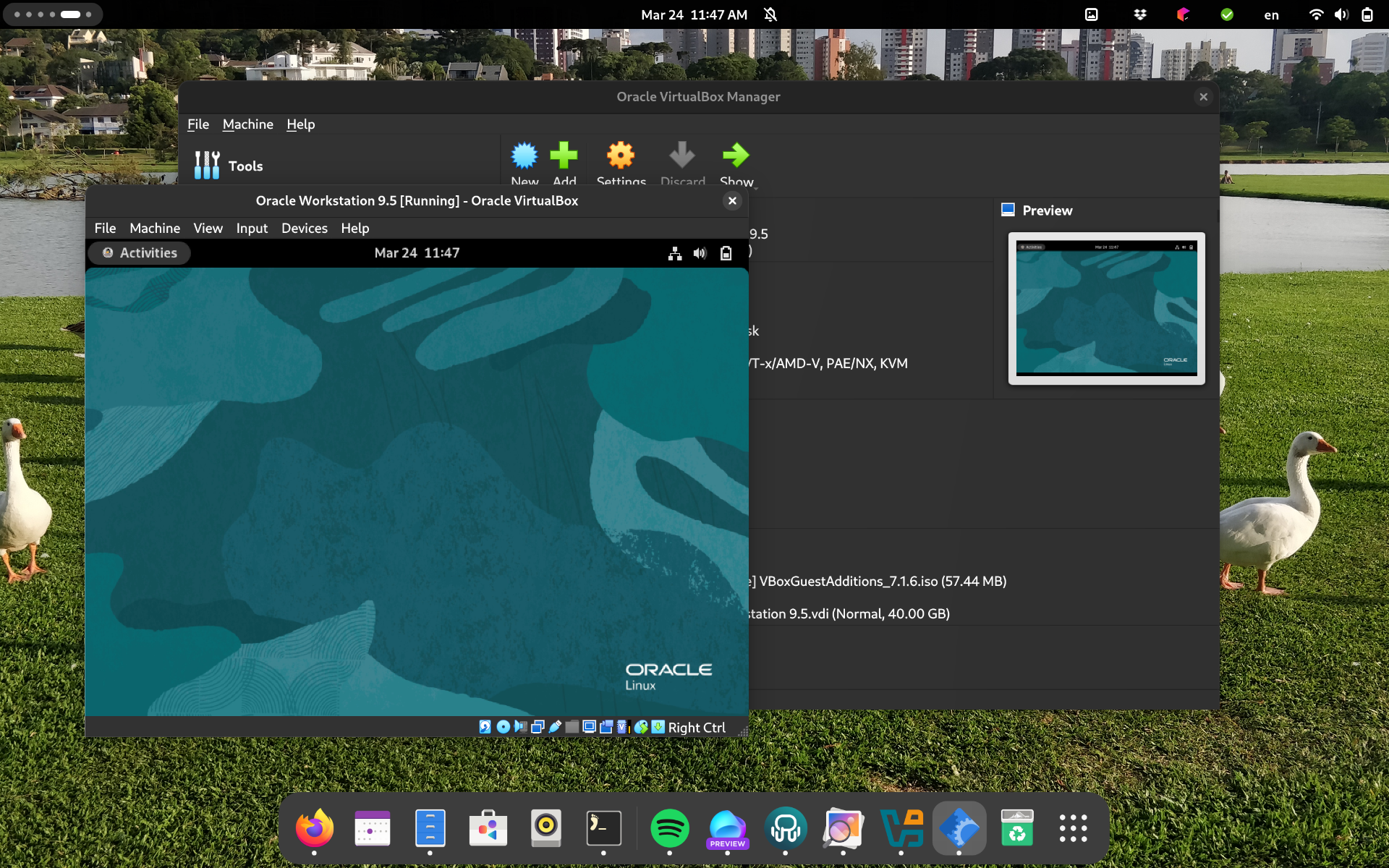
Install VirtualBox over Fedora with SecureBoot enabled
Not too long ago, I upgraded my computer and got a new <strong>Lenovo ThinkPad X1 Carbon</strong> (a great machine so far!).
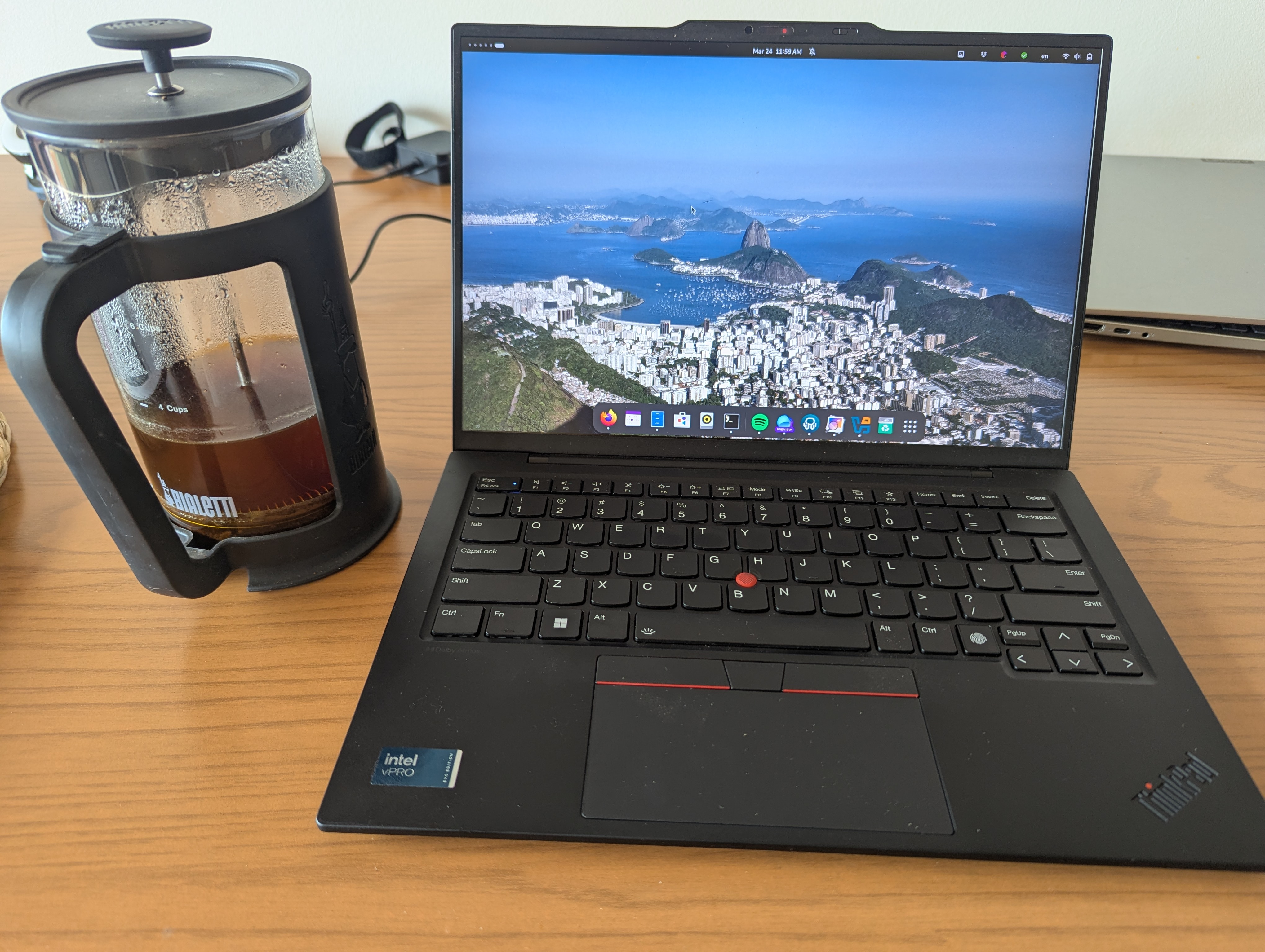
Since I was accustomed to working on a gaming rig (Ryzen 7, 64GB RAM, 4TB) that I had set up about five years ago, I completely missed the Secure Boot and TPM trends—these weren’t relevant for my fixed workstation.
However, my goal with this new laptop is to work with both Linux and Windows on the go, making encryption mandatory. As a non-expert Windows user, I enabled encryption via BitLocker on Windows 11, which worked perfectly… until it didn’t.
The Issue with Secure Boot and VirtualBox/VMware
This week, I discovered that BitLocker leverages TPM (the encryption chip) and Secure Boot if they’re enabled during encryption. While this is beneficial for Windows users, it created an unexpected problem for me: virtualization on Linux.
Let me explain. Secure Boot is:
…an enhancement of the security of the pre-boot process of a UEFI system. When enabled, the UEFI firmware verifies the signature of every component used in the boot process. This results in boot files that are easily readable but tamper-evident.
This means components like the kernel, kernel modules, and firmware must be signed with a recognized signature, which must be installed on the computer.
This creates a tricky situation for Linux because virtualization software like VMware or VirtualBox typically compiles kernel modules on the user’s machine. These modules are unsigned by default, leading to errors when loading them:
# modprobe vboxdrv
modprobe: ERROR: could not insert 'vboxdrv': Key was rejected by service
A good way to diagnose this is to check dmesg for messages like:
[47921.605346] Loading of unsigned module is rejected
[47921.664572] Loading of unsigned module is rejected
[47932.035014] Loading of unsigned module is rejected
[47932.056838] Loading of unsigned module is rejected
[47947.224484] Loading of unsigned module is rejected
[47947.257641] Loading of unsigned module is rejected
[48291.102147] Loading of unsigned module is rejected
How to Fix the Issue with VirtualBox Using RPMFusion and Akmods
Oracle is aware of this issue, but their documentation is lacking. To quote:
If you are running on a system using UEFI (Unified Extensible Firmware Interface) Secure Boot, you may need to sign the following kernel modules before you can load them:
vboxdrv,vboxnetadp,vboxnetflt,vboxpci. See your system documentation for details of the kernel module signing process.
Fedora’s documentation is sparse, so I spent a lot of time researching manual kernel module signing (Fedora docs) and following user guides until I discovered that VirtualBox is available in RPMFusion with akmods support.
Some definitions:
- RPM Fusion is a community repository for Enterprise Linux (Fedora, RHEL, etc.) that provides packages not included in official distributions.
- Akmds automates the process of building and signing kernel modules.
Here’s the step-by-step solution:
1. Enable RPM Fusion (Free Repo)
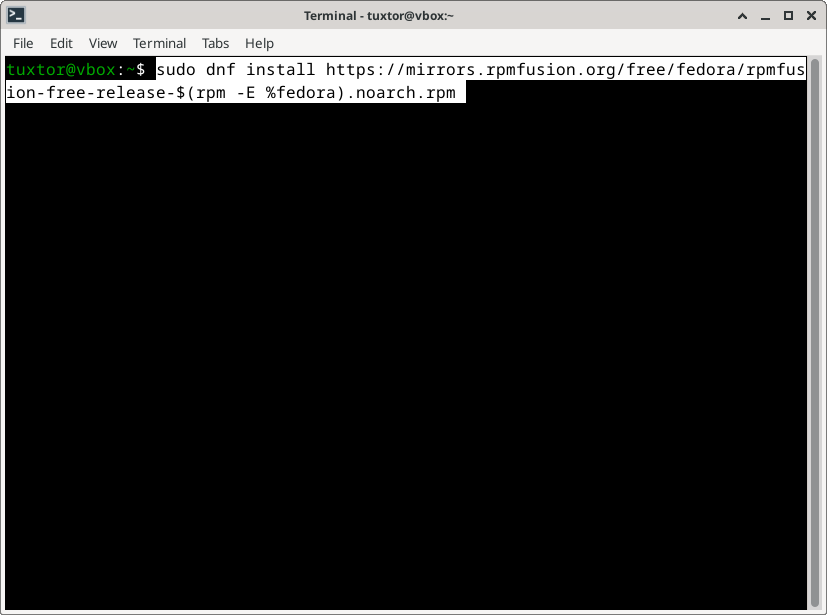
Install the RPM Fusion free repository:
sudo dnf install https://mirrors.rpmfusion.org/free/fedora/rpmfusion-free-release-$(rpm -E %fedora).noarch.rpm
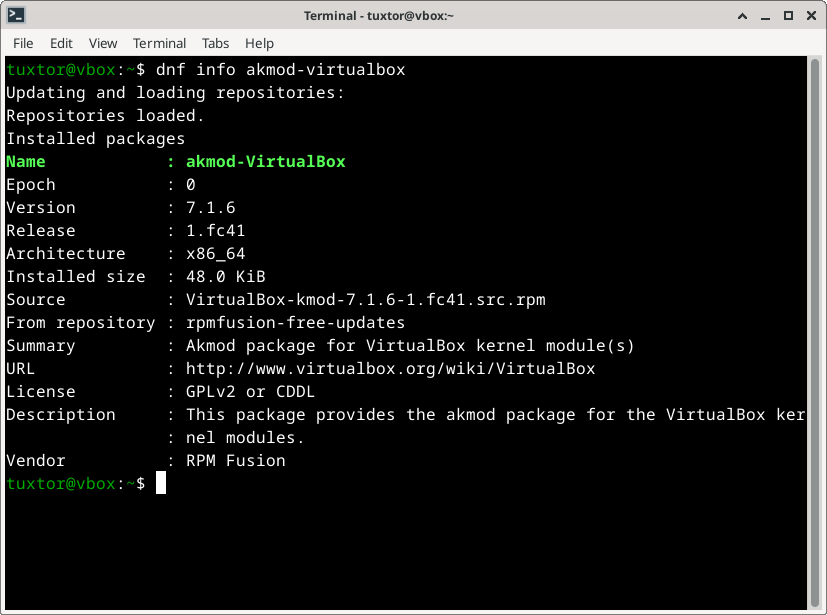
2. Install VirtualBox (with Akmods)
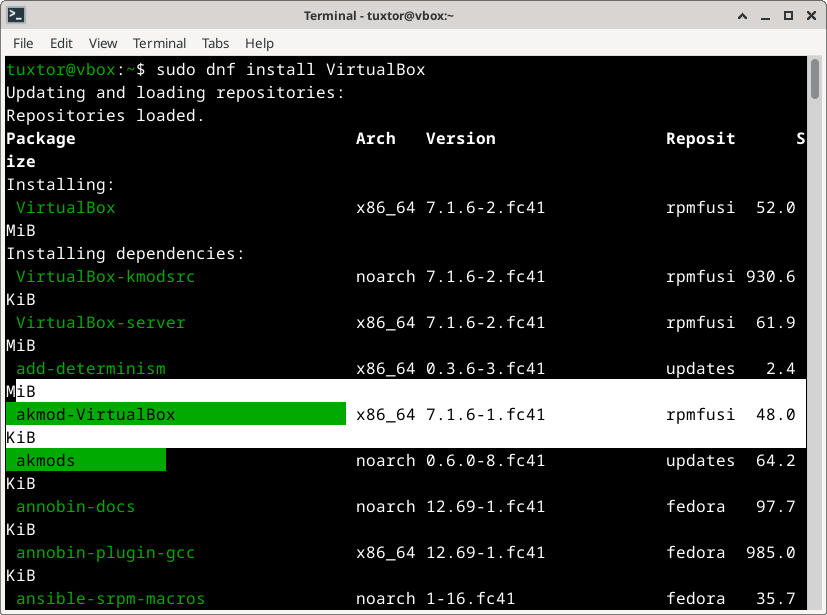
Ensure VirtualBox is installed from RPMFusion (akmods will be a dependency):
sudo dnf install virtualbox
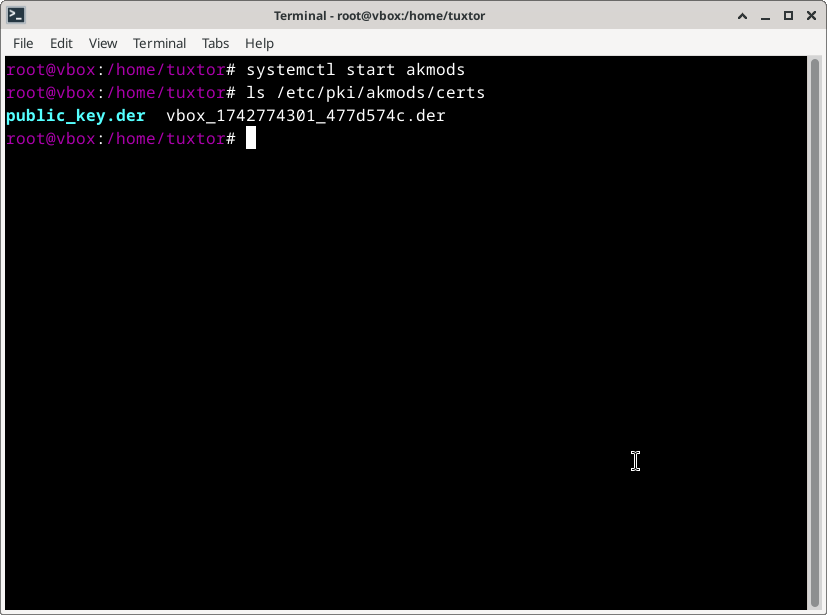
3. Start Akmods to Generate Keys
Akmods will automatically sign the modules with a key stored in /etc/pki/akmods/certs:
sudo systemctl start akmods.service
4. Enroll the Key with Mokutil
Use mokutil to register the key in Secure Boot:
sudo mokutil --import /etc/pki/akmods/certs/public_key.der
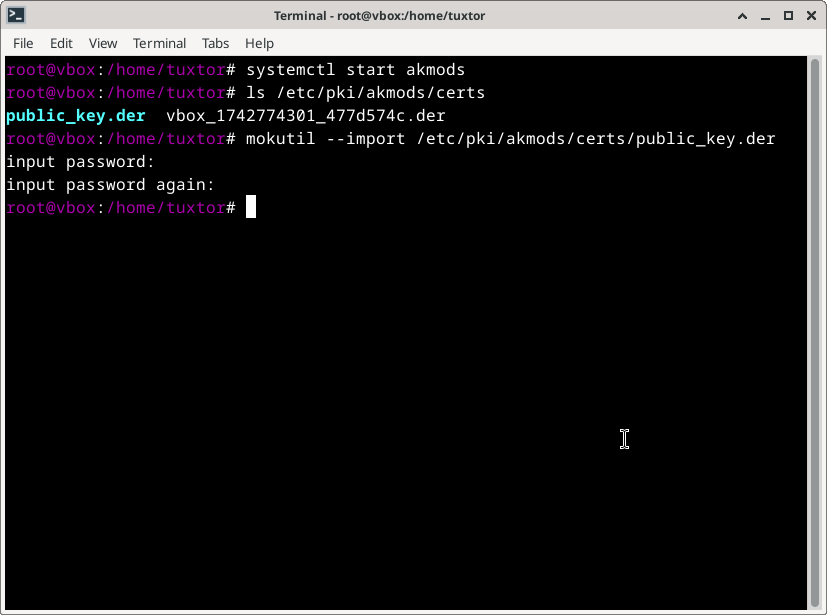
You’ll be prompted for a case-sensitive password—remember it for the next step.
5. Reboot and Enroll the Key
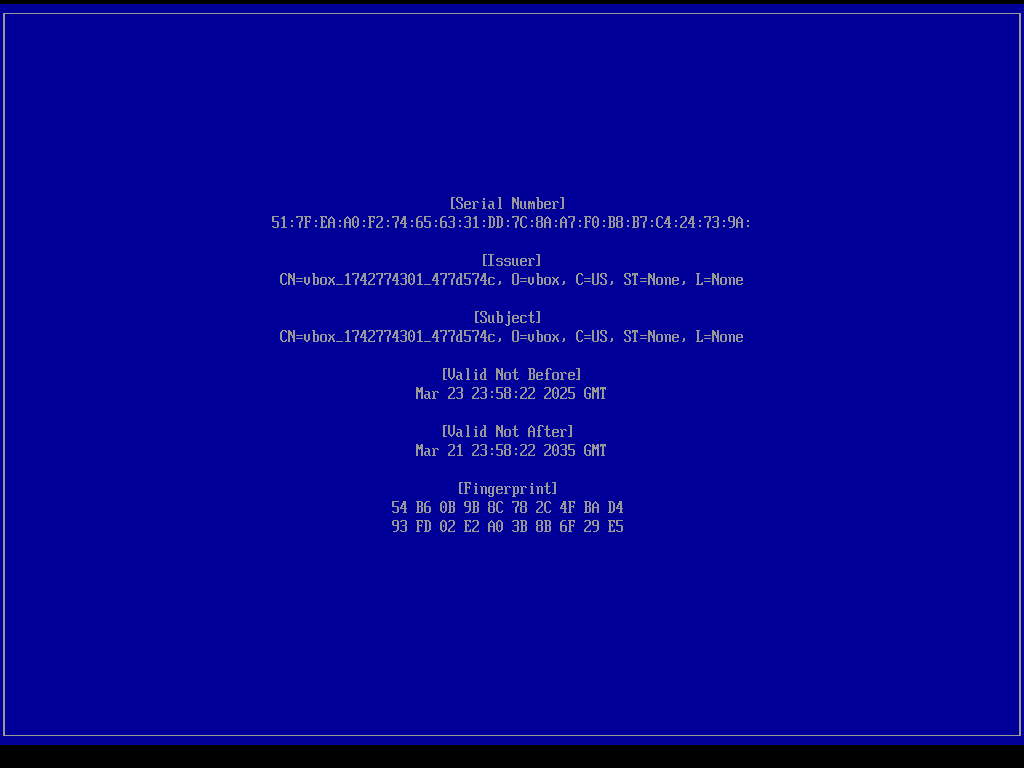
After rebooting, the UEFI firmware will prompt you to enroll the new key.
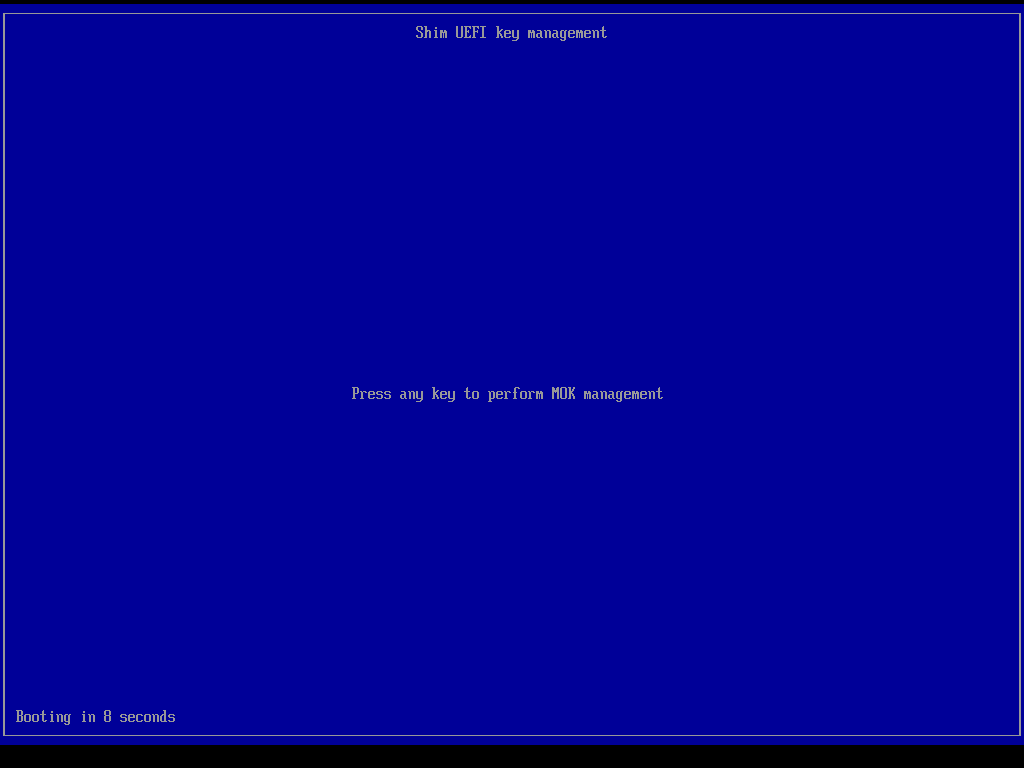
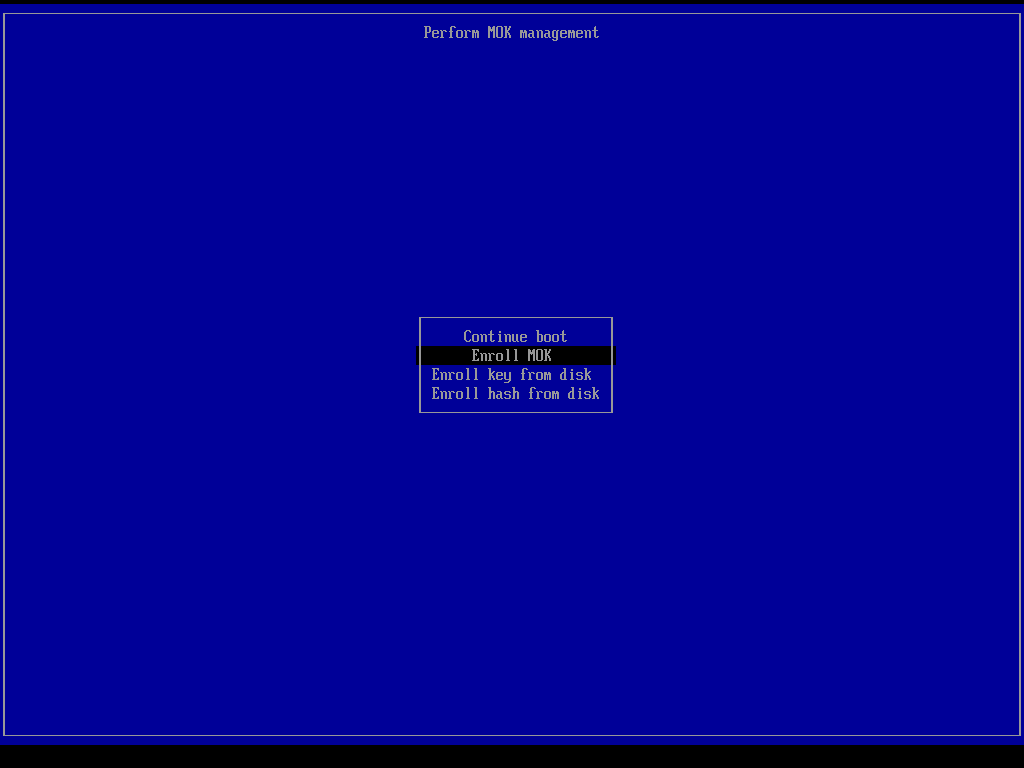
If needed, you could also check for the key contents in that screen.
6. Start VirtualBox Kernel Modules
The modules are now signed and can be loaded. Enable these at boot:
sudo systemctl start vboxdrv
sudo systemctl enable vboxdrv
Verify they’re loaded:
lsmod | grep vbox
Output:
vboxnetadp             32768  0
vboxnetflt             40960  0
vboxdrv               708608  2 vboxnetadp,vboxnetflt
Now, VirtualBox runs on Fedora with Secure Boot and TPM enabled, without disabling BitLocker on Windows.